How to Connect ClassLink to Your Sched Event #
Sched supports integration with ClassLink to make importing attendees faster and easier. Follow the steps below to connect your ClassLink to your Sched event.
Step 1: Get Your Client ID and Secret Key from ClassLink
Log in to your ClassLink Partner Portal, add the Sched application (if not already added), and locate your Client ID and Secret Key.
💡 Important: Make sure you’re logged into the ClassLink Help Center to access detailed guides like ” Adding Applications and Modifying Permissions.“
If this is your first time, email [email protected] for help with setup, permissions, or accessing your credentials.
📩 Once you have the Client ID and Secret Key, email them to [email protected]. The Sched team will take care of the integration setup for you.
Once you have those credentials, please send them to [email protected], and we’ll take care of the integration on our end.
Step 2: Import Attendees from ClassLink into Sched
Once the Sched Support Team confirms that your ClassLink integration is active:
-
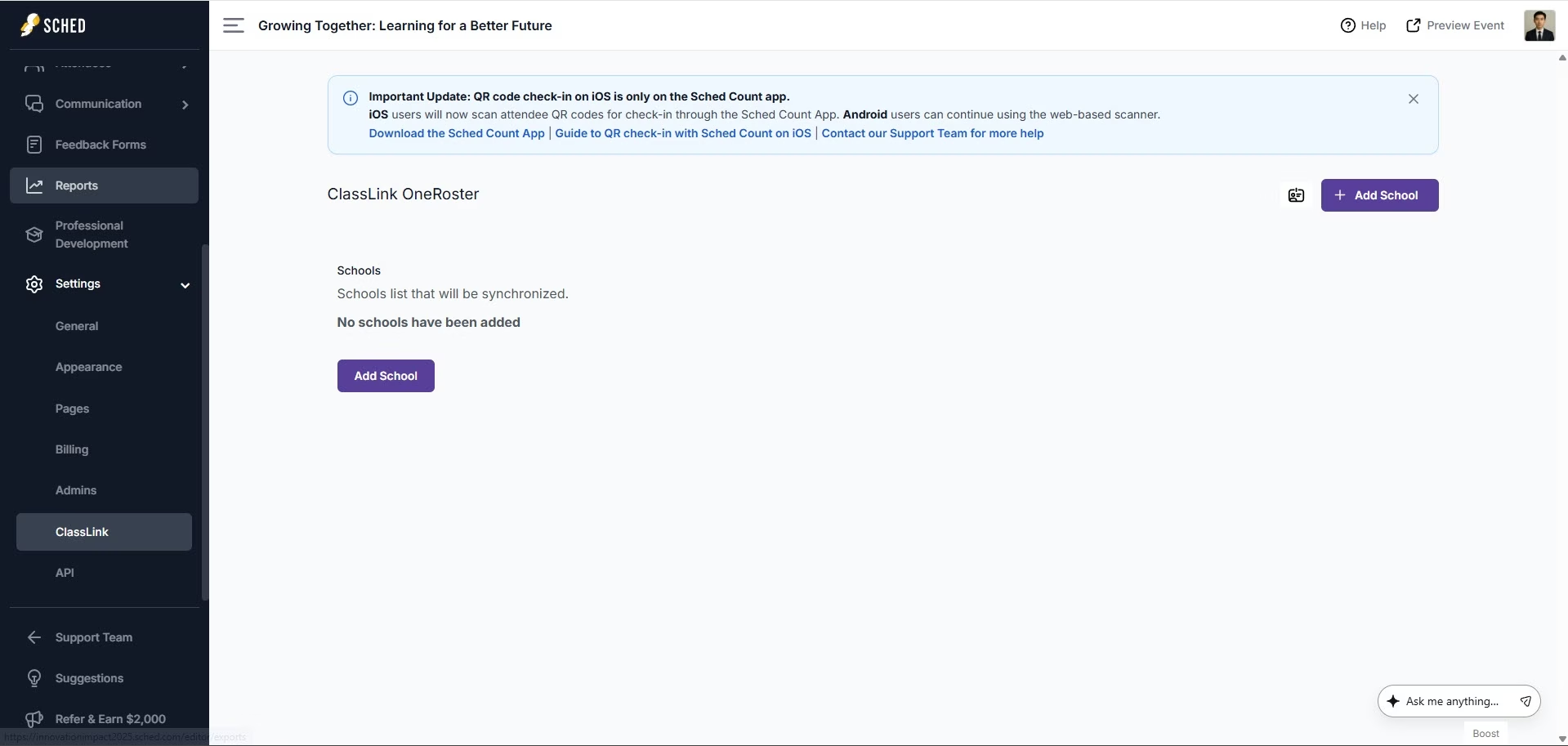
Go to your event’s Settings in Sched, open the Classlink section.
-
Click the ➕ (plus) button to view the list of schools and users pulled from ClassLink.

-
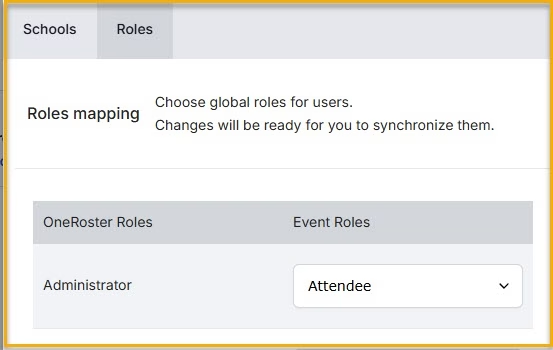
Under Roles, assign the appropriate Sched role to each group (e.g., Attendee, Speaker, Admin). After assigning the role, click Save Roles.
Example: Assign your administrator as “Attendees.”

“Roster Roles” refers to the current roles users have in ClassLink.
“Event Roles” refers to the available roles you can assign to users in Sched.
-
Go back to the School section, select the schools you want to import, and click “Add Selected.”
-
Click “Synchronize” to complete the import.
Once the sync is complete, users from ClassLink will appear in your Sched event with their assigned roles and synced data.


