Some events follow a similar schedule and content year after year. If you’ve perfected your setup and have everything organized just the way you like it, you can duplicate that event and save yourself time.
Duplicate an Event #
You can duplicate an event from two places in the dashboard.
From My Events:
- Go to My Events and open the Organizing tab.
- Find the event you want to duplicate and click the three-dot menu (
...). - Select Duplicate Event.


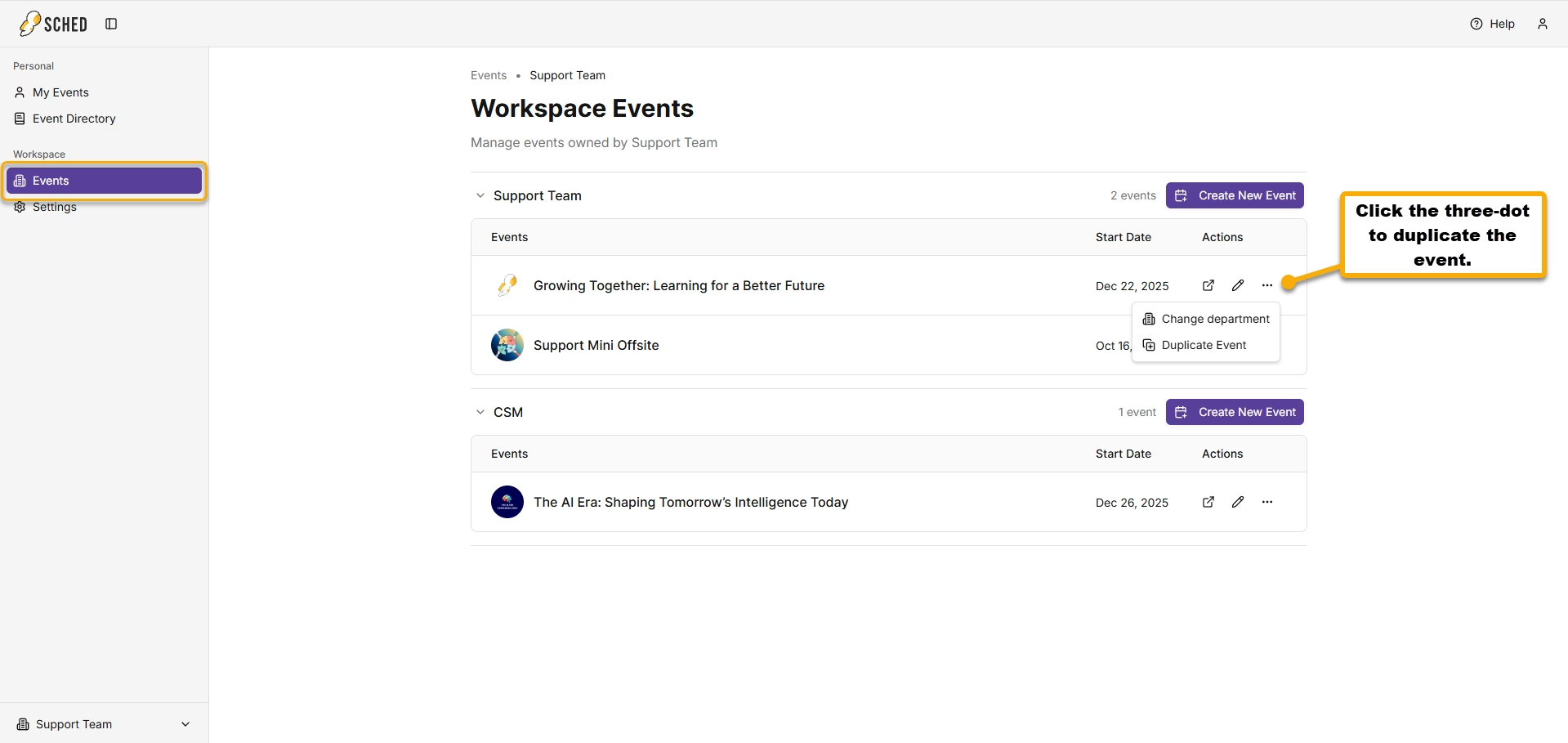
From Workspace Events:
- In the dashboard, open your Workspace and click Events in the left navigation.
- Find the event you want to duplicate and click the three-dot menu (
...) in the Actions column. - Select Duplicate Event.

If the event isn’t linked to an organization yet:
You’ll be prompted to link it to an organization before continuing. Once that’s done, the duplication workflow will continue automatically. If you cancel at this step, the duplication will not continue.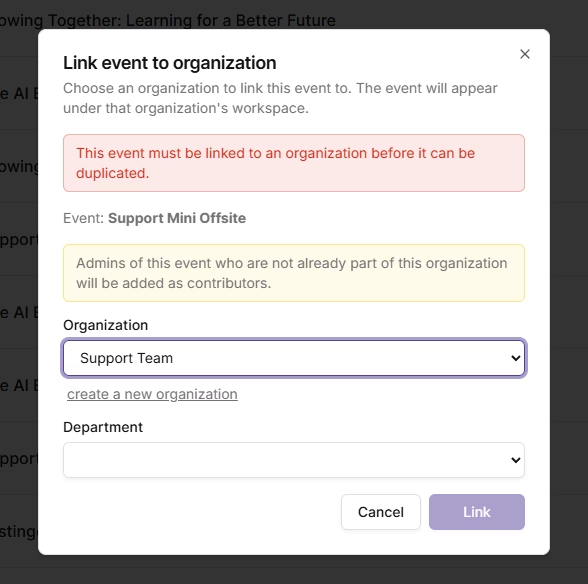
Setting a name and URL:
The name and URL fields are pre-filled based on the event you’re duplicating. You can edit both before proceeding.
Choosing what to copy:
A data selection screen will appear. All options are checked by default; uncheck anything you don’t want copied into the new event, then click Duplicate Event to confirm.
Once complete, you’ll be taken directly to the event editor for your new event.
-
The conference ID name for your URL can be a maximum of 32 characters. If you need to change your URL, please email our support team at [email protected].
- When duplicating an event, always make sure to use the email address linked to your subscription so it will automatically upgrade to your current plan.
- Duplicated events count toward the 5 events per 30-day limit on the Free plan.


