How Organizations Work in Sched #
An Organization is a shared space for related events in Sched. It helps keep events grouped together and supports features such as better analytics, billing (coming soon), and user management.
Every new event in Sched must belong to an Organization. If you are creating a new event, you will need to choose an existing Organization or create a new one. If you are only attending or speaking at an event, you do not need one.
Organization access vs. Event access #
Being part of an Organization is not the same as being an admin of an event.
- Organization access controls what you can do in the Organization workspace.
- Event admin access controls what you can do inside a specific event.
For example, you might be able to open the Organization workspace but not edit a specific event. Or, you might be able to manage an event but not open the Organization workspace.
Some Organization roles and permissions can also give members event editing access without adding them individually as admins on each event.
A member can edit an event if they meet any of these criteria:
-
They were added directly as an admin for the event.
-
They are the owners of the event’s Organization.
-
They are a Contributor with Edit Events permission.
-
They are a Department Editor for the event’s department.
The event’s Settings in the Admin section screen only show people who were added directly as admins for that event. Members who can edit the event through their Organization role, permissions, or department access will not appear on that screen unless they were also added directly.
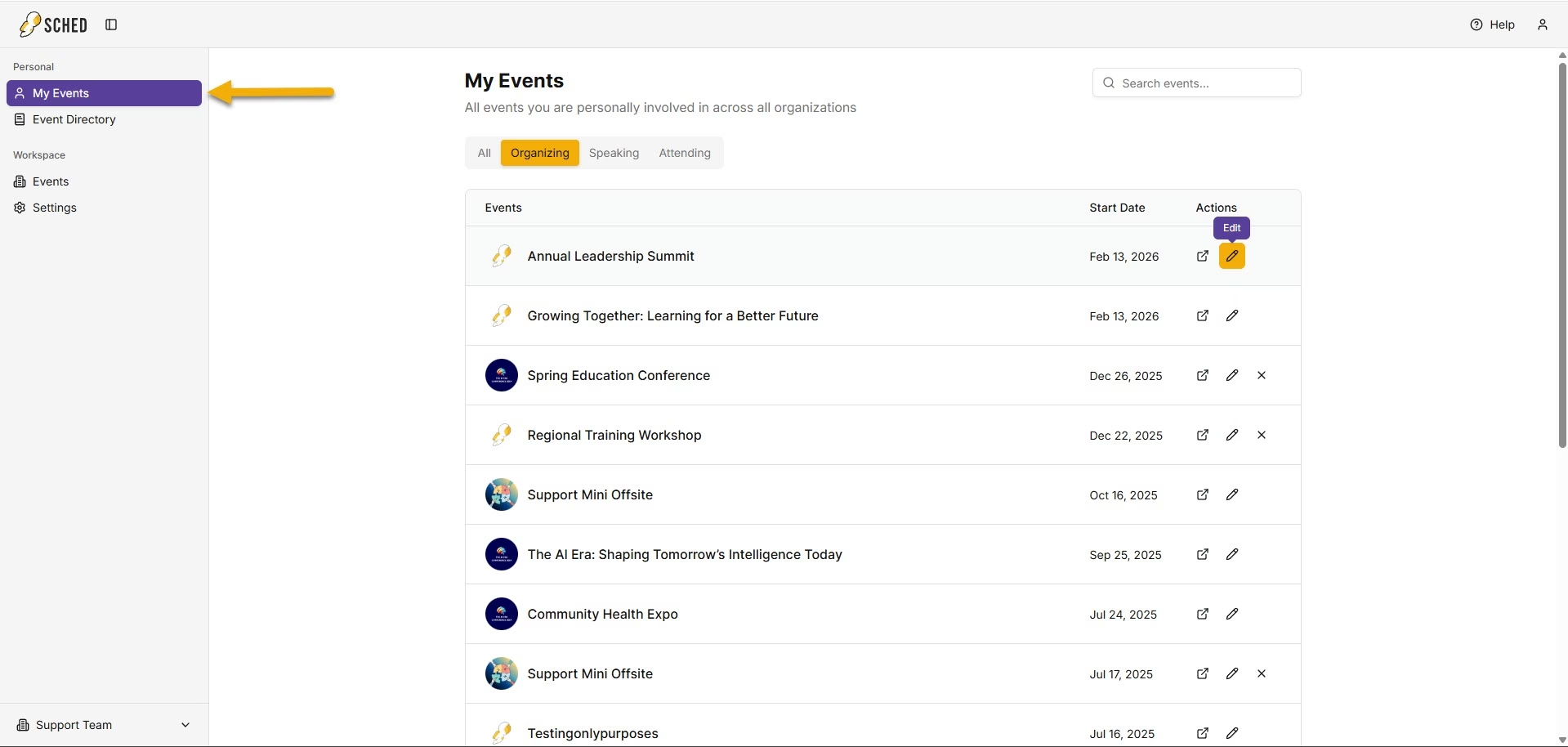
How event access appears in My Events
Events may appear under the Organizing section of My Events when you have access to organize or edit them. This can happen if you were added directly as an event admin, or if your Organization role or department role gives you editing access.
To open an Organization in the dashboard, you still need access to that Organization. If you can edit an event but do not see the Organization workspace, you may have been added directly as an admin of the event, but your role may not include Organization workspace access.
Organization roles
- Owner: Can manage the Organization, members, roles, permissions, Organization name, and events across the Organization.
- Contributor: Can usually open the Organization workspace and view events in the Organization. Contributors with Edit Events permission can also edit events across the Organization.
- Department Editor: Can view events in their assigned departments and add events to those departments. A Department Editor is similar to a Contributor with Edit Events permission, except access is limited to assigned departments.
- Department Viewer: Can view only the events in their assigned departments.
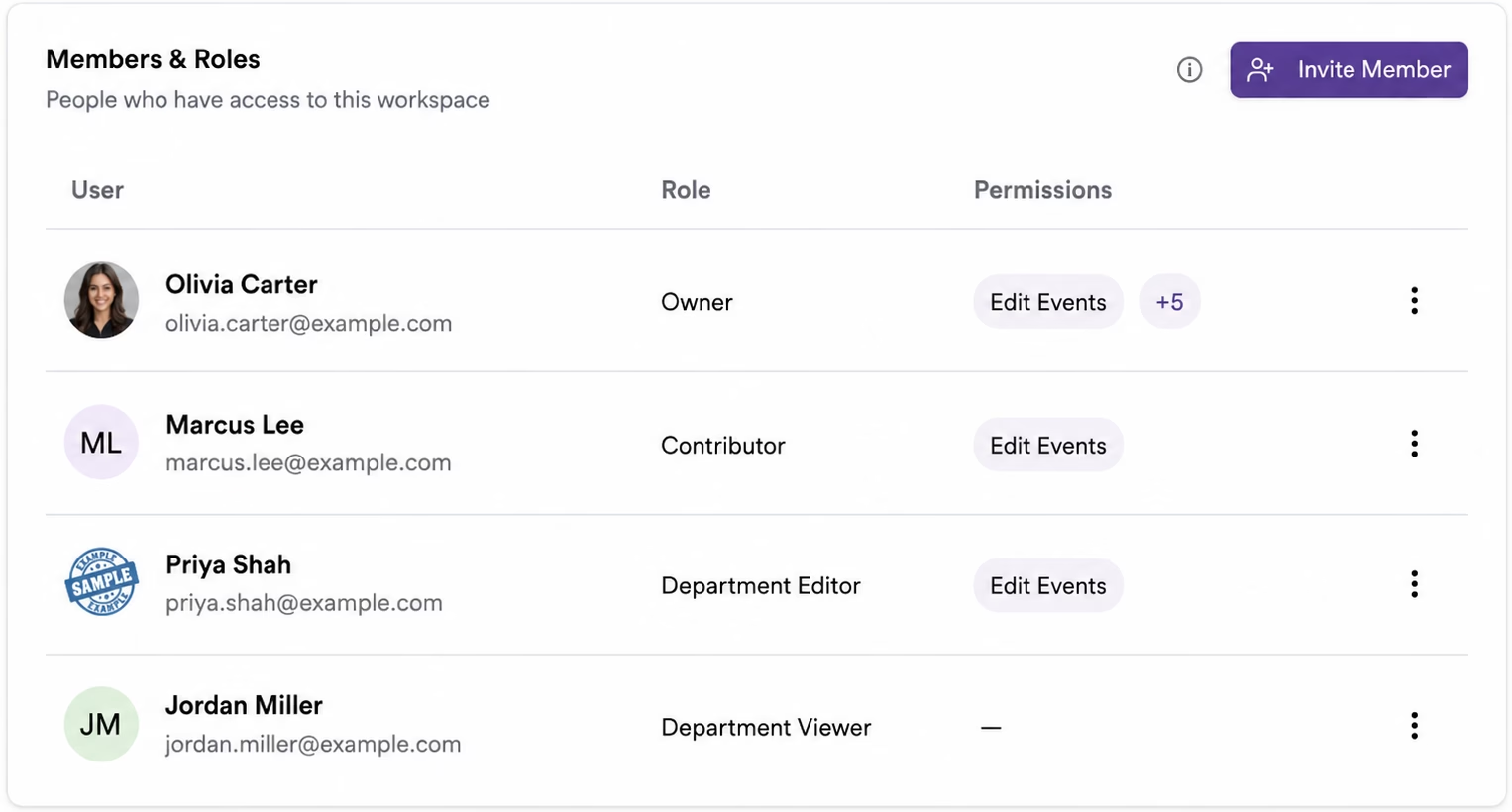
Note: Owners, Contributors with Edit Events permission, and Department Editors can access eligible event control panels without being added individually as admins on each event.
Departments
Departments help keep related events organized and make it easier to control who can view or manage them. This is especially helpful for larger Organizations that manage different teams, schools, programs, or event groups.
Departments are optional. No setup is required unless you want to use them. By default, every Organization has one department with the same name as the Organization. If you are not actively using Departments, events will be placed there automatically.
Every event in an Organization always belongs to one department.
With Departments, you can:
-
Create a department
-
Rename a department
-
Delete a department (A department cannot be deleted if there are still events or members assigned to it.)
-
Move an event from one department to another.
By default, only Organization Owners can create departments. Contributors can also be given access to create departments through the Edit Settings permission and to manage departments through the Edit Department permission.
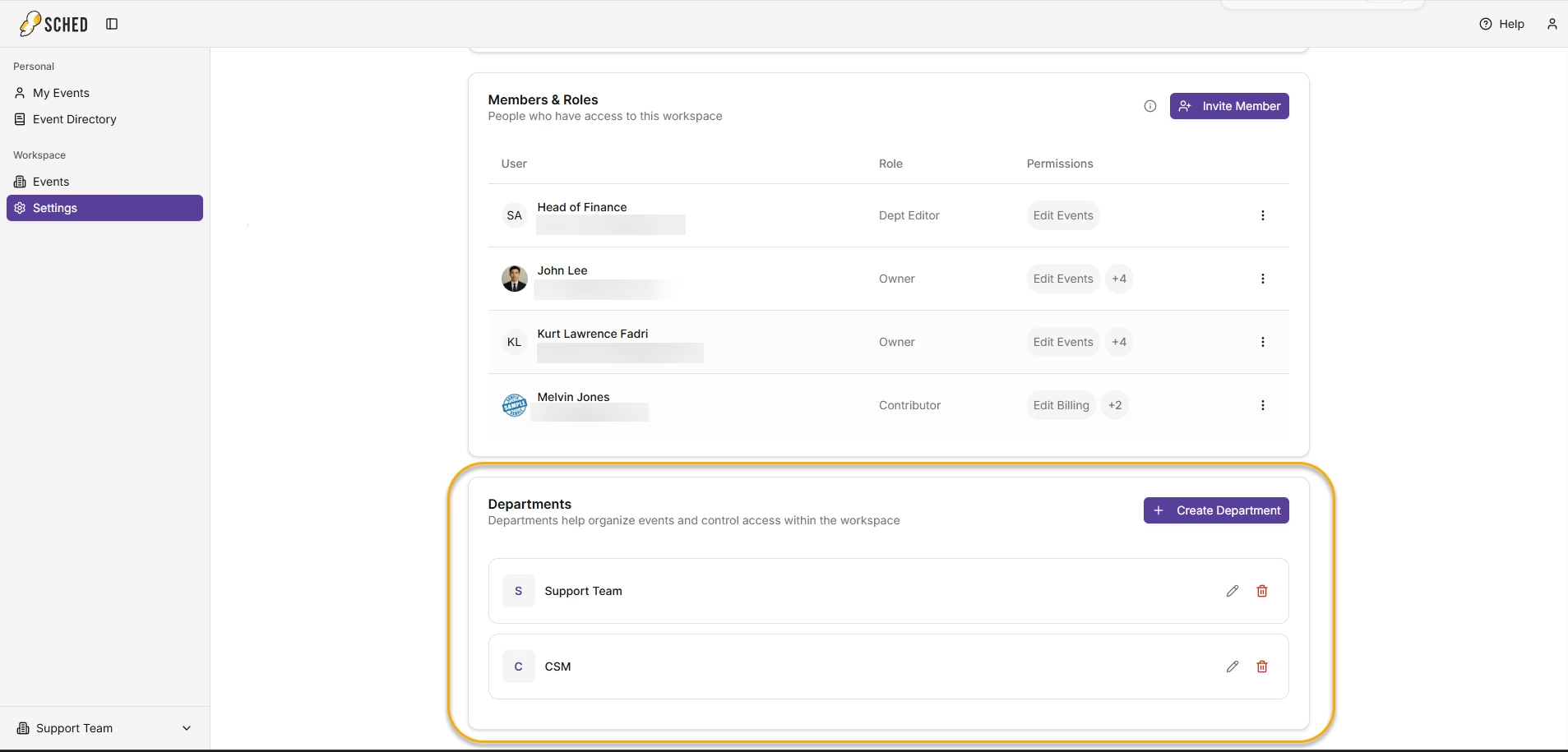
Two department-specific roles are available: Department Viewer and Department Editor. These roles can be assigned to one or more departments. When assigning one of these roles, at least one department must be selected.
How to access your Organization workspace and settings #
- Go to My Events or Login
- What you can see and do in the Organization workspace depends on your role and permissions. Some settings are only available to Owners or to members who have been given the required access.
In the Organization workspace, you can:- Edit the Organization name
- Invite members to your Organization
Manage permissions for an existing member - Create, rename, and remove Departments
- Assign department-based roles and access for members (Department viewer and Department Editor)
- Switch workspaces if you belong to multiple Organizations.
Note: If you do not see certain settings or actions, your Organization role may not include access to them. An Owner can grant additional permissions if needed
Organization Workspace Settings Sample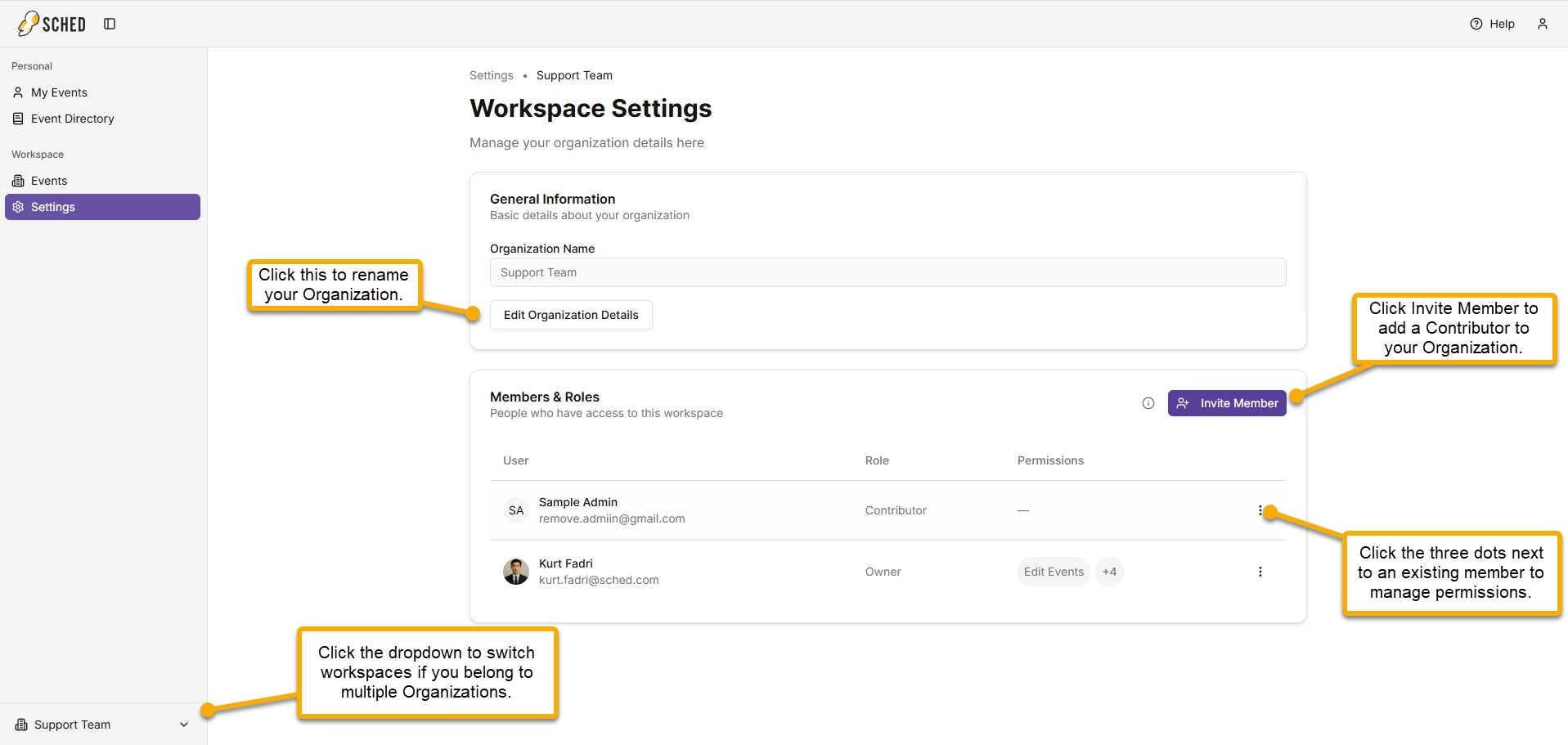
Department Access Sample 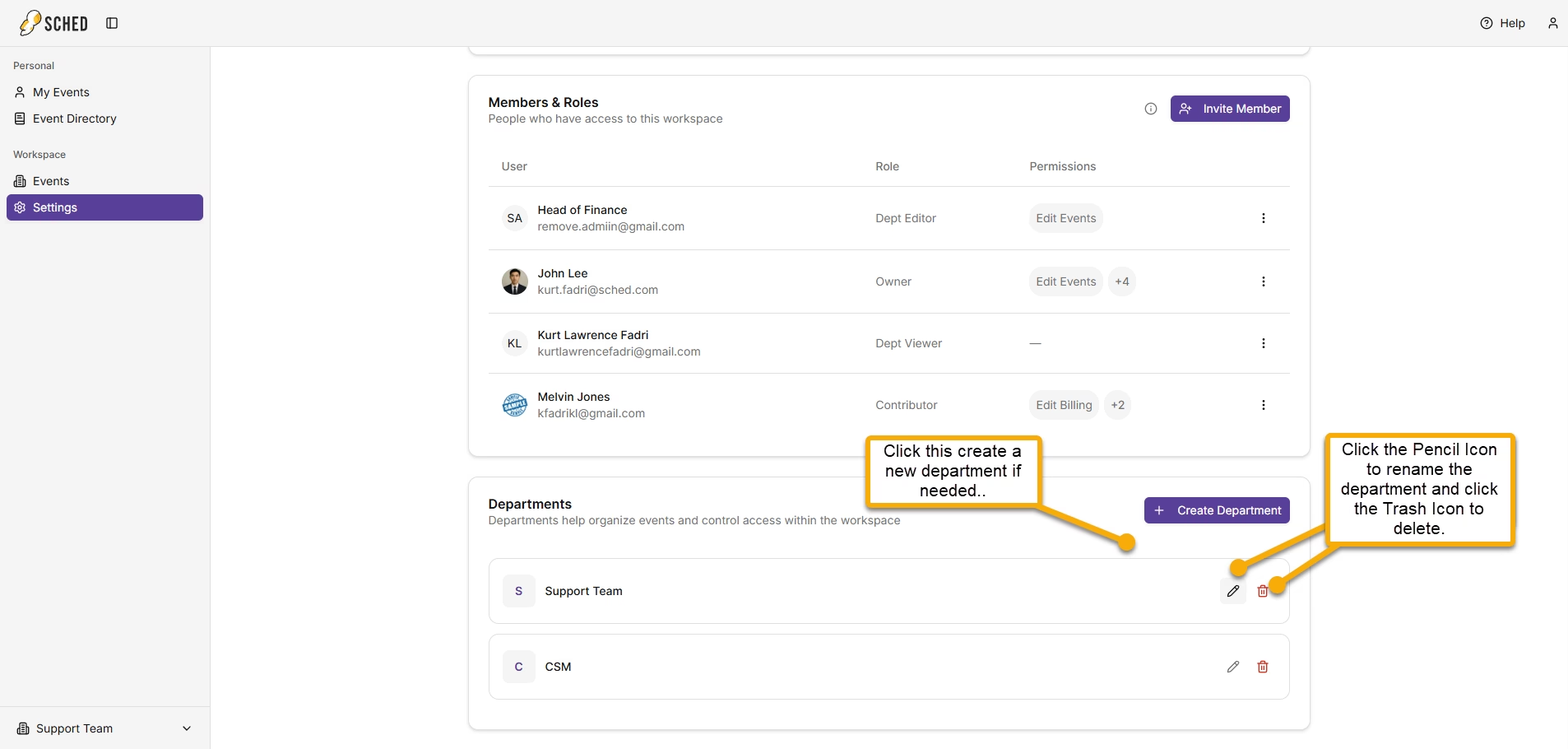
Not assigned to an Organization: If you see this, the event has not yet been linked to an Organization. Click it to assign the event to your Organization.
Note: You may see this for events that were created before the Organizations feature was released.
Unassigned Event Sample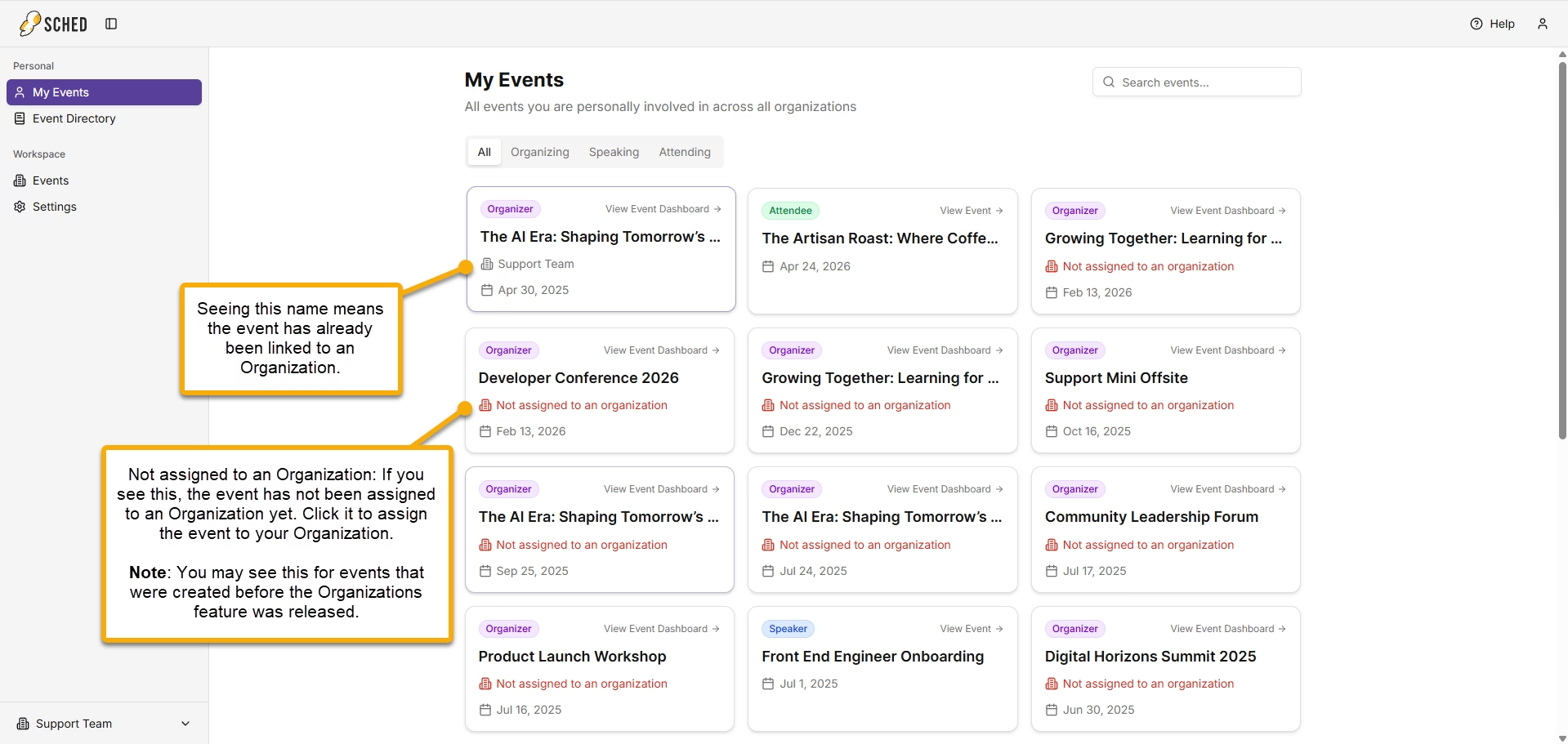
When do I need an Organization? #
You need an Organization whenever a new event is being created.
This includes:
- Signing up as an Event Planner
- Creating a new event as an existing user
- Duplicating an event
What to expect:
The Organization step may look different depending on how the event is created.
- If you sign up as an Event Planner, Sched automatically creates an Organization for you. You can name it during signup or skip that step and name it later.
- If you create a new event as an existing user, you can now do this directly from the Workspace Events page or My Events page. You will still need to choose an existing Organization or create a new one.
Note: You must have Edit Events permission within the organization to create a new event. - If you duplicate an event, the duplicate stays in the same Organization when possible. Events must be linked to an Organization before they can be duplicated. If an event isn’t linked yet, you’ll be prompted to link it before the duplication continues.


